
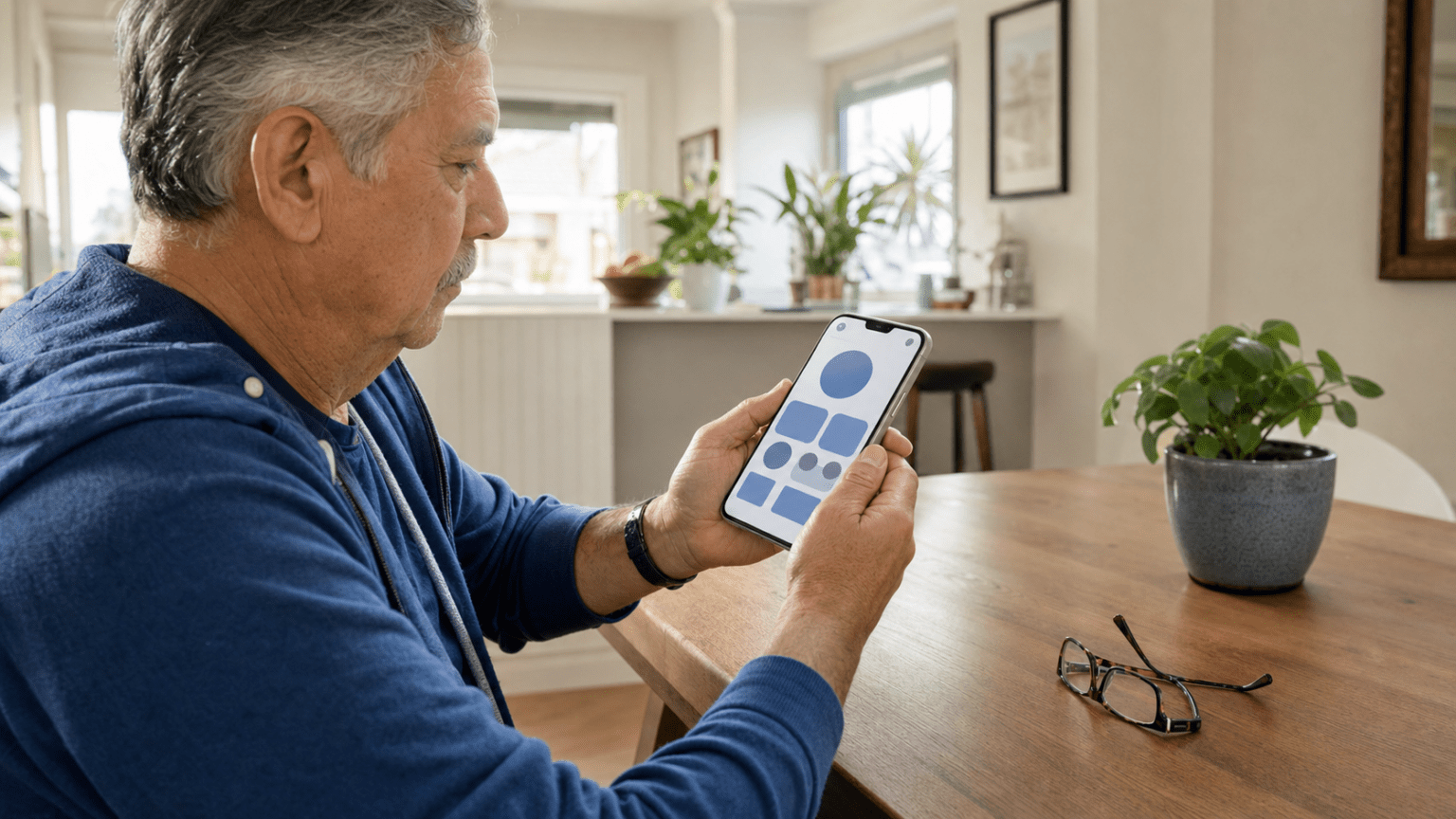
Change one control
Text size, display size, screen magnification, and the camera Magnifier are different tools. Test one before adding another.
Use familiar screens
Check Messages, Contacts, the dial pad, and one browser page. A large sample letter in Settings is not enough.
Keep it reversible
Write down the original slider position and the route back to it. Do not rely on a screenshot stored inside a phone that may become hard to navigate.
Expect app differences
Some apps do not fully follow the phone’s text-size setting. Fixing one difficult app may require that app’s own controls.
Which smartphone readability control should you use?
A phone can make things larger in several ways, and the names are easy to confuse. Choosing the right control first prevents a simple adjustment from turning into a frustrating navigation problem. These features are built into current iPhone and Android software, although the exact labels and locations can vary by operating-system version and phone manufacturer.
Text or font size
This enlarges supported words and numbers while leaving much of the surrounding layout unchanged. It is usually the best first adjustment when messages, contact names, or settings labels feel too small.
Display size or display zoom
This enlarges more of the interface, including some icons, controls, and spacing. It can help when labels are readable but buttons or touch targets still feel too small.
Screen magnification
This temporarily zooms all or part of the screen. It is useful for an occasional small item, but the shortcut and movement gestures should be practiced before relying on it.
Camera Magnifier
This uses the phone’s camera to enlarge a menu, label, thermostat, or other object in front of the phone. It does not enlarge the phone’s own Settings or Messages screen.
Apple’s current display and text guidance separates Text Size, Bold Text, and Display Zoom. Google’s Android display-size and text guidance likewise treats font size and display size as separate controls and cautions that some apps may not use the system font-size setting. That is why a real-app fit test matters.
How do you prepare a reversible phone readability test?
Choose a calm ten-minute period at home, in a Los Angeles County library, or in another well-lit place where there is no need to rush for a bus, appointment, or call. Charge the phone, clean the screen, and put on the glasses normally used for the device. Complete pending system updates separately; the smartphone software update checklist keeps that task from becoming mixed with the readability test.
- Record the starting point outside the phone. On a small card, write the device type and the path used, such as “Settings → Display & Brightness → Text Size.” Draw a simple mark showing the starting slider position. Do not record a passcode, Apple ID, Google account, contact name, or private message.
- Choose four familiar test screens. Use a harmless Messages thread, Contacts, the phone dial pad, and a trusted browser page. Close banking, medical, or account-recovery screens before anyone helps.
- Decide who controls the phone. The owner should hold the phone and make the final choice. A helper can read a menu label or point to a route, but should not change passcodes, accounts, cloud settings, or biometric access.
- Move one step, not to the maximum. Increase the slider slightly, return to the test screens, and stop when reading becomes comfortable. Maximum size is not automatically the most usable size.
- Keep the rollback card nearby. If a button disappears, a line is clipped, or the phone feels unfamiliar, follow the written path back and move the slider toward its starting mark.
If a family helper is planning a longer visit, use the technology help session checklist to keep the session focused and consent-based. One successful adjustment is more useful than changing six accessibility features at once.
How do you make text and controls larger on an iPhone?
For a first text-size adjustment, Apple currently directs users to Settings → Display & Brightness → Text Size, then to move the slider. If the available range is not enough, Apple’s larger-text instructions use Settings → Accessibility → Display & Text Size → Larger Text; the optional Larger Accessibility Sizes switch adds more choices. Bold Text can make supported letters heavier without making them much larger.
- Open Settings, then Display & Brightness.
- Tap Text Size and move the slider one step to the right.
- Leave Settings and perform the four-screen fit test below.
- If words are comfortable but icons and controls remain too small, return to Display & Brightness and review Display Zoom. Apple’s current route may ask you to choose a larger view and confirm it.
- If only one supported app needs a different size, consider adding Apple’s Text Size control to Control Center and adjusting that app rather than enlarging everything.
Do not turn on VoiceOver, Zoom gestures, color inversion, or several display effects simply because they appear on the same Accessibility screen. Each is a separate tool with its own controls. If one is genuinely wanted, set it up as a second task after the basic text-size choice is stable.
How do you make text and controls larger on an Android phone?
On current Android guidance, Google recommends opening Settings and searching for Font size or Display size. On many phones, the route is Settings → Accessibility → Display size and text. Samsung, Google Pixel, Motorola, and other manufacturers may use slightly different labels, so Settings search is often safer than following a memorized menu path from another phone.
- Open Settings and use its search box for Font size.
- Open the matching result and move the font slider one step larger.
- Return to Messages, Contacts, the dial pad, and a browser page.
- If the text is readable but interface elements remain too small, search Settings for Display size and test one step larger.
- If the change causes clipping or hides a needed control, return to the same result and move the slider back one step. Some Android versions also show a reset option on the display-size and text screen.
Google notes that font size does not apply to every app. Before making the whole phone extremely large for one stubborn app, look inside that app for a text-size, page-zoom, or reading setting. For long web pages, browser page zoom or Android Reading mode may be more appropriate than a permanent system-wide change, depending on the device and supported content.
What is the four-screen fit test?
The purpose of the fit test is not to prove that the sample text in Settings looks large. It is to confirm that everyday tasks still work. Use ordinary, non-private examples and test in both portrait and landscape only if the owner regularly rotates the phone.
1. Messages
Can the owner read a short message, identify the sender, find the back control, and see the message field? Do not open sensitive conversations for a helper’s benefit.
2. Contacts
Can the owner scan names, open one known contact, and find the call control? A separate large-print phone list remains a useful backup outside the device.
3. Dial pad
Are all ten number keys, the call button, and the delete control visible without scrolling or guessing? Do not place a test call to emergency services.
4. Browser page
Can the owner read a short paragraph, follow a link, return to the prior page, and close the tab? Test with a familiar public page, not an account or payment screen.
| What you notice | Best next step | What to avoid |
|---|---|---|
| Text is comfortable and every control remains visible | Keep the setting for two days, then ask whether it still feels natural | Adding more features just because the Accessibility menu is open |
| Text is better, but one app still looks small | Check that app’s own text or page-zoom setting | Pushing the entire phone to maximum size for one app |
| Buttons, names, or navigation are clipped | Move the last slider back one step and retest | Assuming the missing control was removed from the app |
| The owner cannot remember a new magnification gesture | Turn off that shortcut and keep the simpler everyday setting | Leaving an unfamiliar gesture enabled “just in case” |
After the fit test, also confirm that an emergency alert can still be read and dismissed using an existing saved example or settings preview. Do not trigger a live alert. A readability change should support important phone use, not just improve one demonstration screen.
How do you practice temporary screen magnification safely?
Temporary magnification is useful when a map label, confirmation line, or small image needs a closer look. It changes how the screen moves, so practice with a harmless page while seated. Do not first test it during navigation, a payment, an urgent message, or a transit transfer.
On iPhone, the Zoom feature is under Accessibility and can magnify the full screen or a movable window. The camera-based Magnifier is different: Apple’s Magnifier guidance explains how it enlarges nearby text or objects through the camera. On Android, Google’s screen magnification guidance explains full-screen and partial-screen options, shortcut choices, and version-specific controls.
- Open a public browser page with no sign-in.
- Turn on the chosen magnification shortcut with the owner watching each step.
- Magnify one sentence, move to the next sentence, and return to normal size.
- Repeat once without coaching.
- If the owner cannot reliably exit, disable the shortcut and keep the simpler text or display setting.
The camera Magnifier can help with a printed menu or appliance label, but it should not be presented as a safety guarantee or a substitute for confirmed accessible information. Keep the phone steady, use good light, and never aim the camera at another person’s mail, identification, payment card, or medical paperwork.
How can a family helper assist without taking over?
Ask what feels difficult before touching the phone: words, icons, brightness, one specific app, or occasional tiny details. Let the owner choose the goal and hold the device. Narrate only the next step. If Settings looks different from your phone, search the owner’s Settings rather than guessing.
If a public computer or library device is also part of the plan, keep that as a separate session and use the public library computer checklist. Shared devices have different privacy and sign-out requirements from a personal phone.
All Seniors Foundation can share educational routines and help older adults organize questions, but it does not diagnose vision problems, repair phones, manage device accounts, or guarantee that a setting will work in every app. For device-specific instructions, confirm the current route with Apple, Google, or the phone manufacturer.
Ask All Seniors Foundation for general senior-support guidance
This educational guide does not replace current device-maker instructions. Menu names, supported features, shortcuts, and app behavior can change with phone models and software versions.
Frequently asked questions
Should I change text size or display size first?
Change text size first when words are the main problem. Try display size or display zoom only when icons, buttons, and other interface elements also need to be larger.
Will a larger phone font work in every app?
No. Apple and Android provide system text controls, but some apps use their own sizes or do not fully follow the system setting. Test familiar apps before keeping the change.
What if larger text hides a button or cuts off a name?
Return to the same text-size setting, move the slider back one step, and retest. Then check whether the difficult app has its own text or page-zoom control.
Is screen magnification the same as the phone’s camera Magnifier?
No. Screen magnification enlarges content already displayed on the phone. The camera Magnifier enlarges a nearby physical object, label, or printed page through the camera.
Should a helper change several accessibility settings at once?
No. Change one setting, test it on familiar screens, and keep a rollback path. Several simultaneous changes make it difficult to identify what helped or caused confusion.
What should I write on the rollback card?
Write only the device type, the Settings route, and a simple mark for the original slider position. Do not record a passcode, account name, contact, or private message.


