
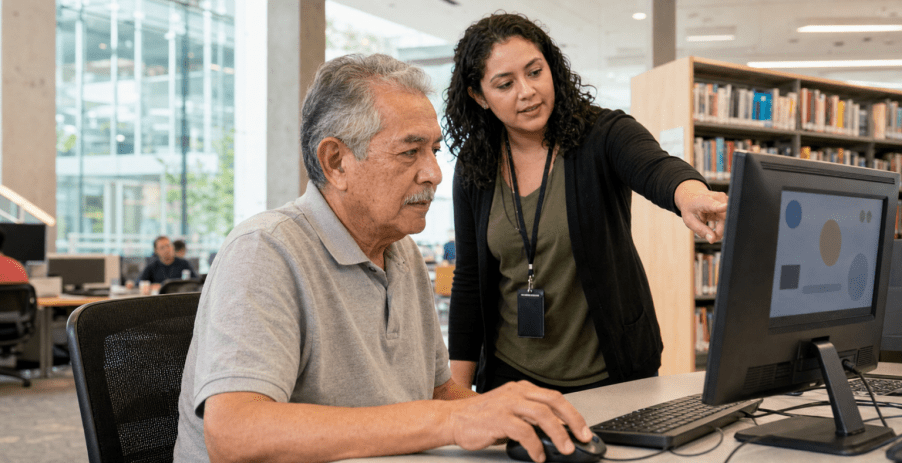
Quick answer Before using a public library computer, choose one task, bring only the files and account details you need, and learn the branch time limit. Save work in two places, stop ten minutes early, sign out of every account, remove your USB drive, and ask library staff for help with the computer rather than sharing a password.
A public library computer can be a practical bridge when a home computer is unavailable, a printer is needed, or a larger screen makes a task easier. For an older adult in Los Angeles County, the best session is not the one that tries to finish everything. It is the one that completes one useful task, protects private information, and ends with the work saved.
What should you prepare before going to the library?
Start with the branch website or a phone call. Confirm hours, whether a library card or guest pass is required, how computer access is assigned, whether printing is available, and what file types or payment methods the branch accepts. Rules can change, and one Los Angeles library system may work differently from another.
Pack a small session kit. Bring your library card if you have one, the PIN if required, reading glasses, a USB drive that you recognize, and a paper note with the name of the task. If another person is helping, agree in advance on what that person may see or type. A helper can point, read instructions aloud, or take notes without learning the older adult’s passwords.
Place the needed file on the USB drive before the visit and give it a plain, easy-to-find name such as housing-letter-July.pdf. Avoid bringing a drive filled with unrelated tax, medical, legal, or identity records. Carrying only the necessary file reduces confusion and limits what could be exposed if the drive is misplaced.
How do you choose a realistic task for one computer session?
A useful task has a visible finish line. “Work on paperwork” is too broad. “Open the letter, correct the address, save the final PDF, and print one copy” is specific enough to complete. Write the finish line at the top of the paper session card so it remains visible when websites or menus become distracting.
Estimate the task in three blocks: opening and signing in, doing the work, and closing safely. Reserve at least ten minutes for the final block. If the task involves creating a new online account, recovering a forgotten password, or waiting for a verification code, consider making that the only task. A password problem can consume most of a limited session.
For a first visit, choose a low-pressure practice task: open a document, increase the browser zoom, save a copy, and print one page. The technology help session checklist can help an older adult and a trusted helper agree on one learning goal. The library due-date and return routine is useful when the computer visit is part of a broader library trip.
How do Los Angeles public-computer rules differ?
Los Angeles County includes separate library systems, so do not assume one card or procedure works everywhere. The current official pages below are the right places to verify details shortly before a visit.
| System | Current access summary | What to confirm |
|---|---|---|
| Los Angeles Public Library | The official Use or Reserve a Computer page explains card, guest-pass, walk-up, reservation, and daily-time options. Central Library and branch procedures are listed separately. | Branch hours, reservation availability, card status, guest access, and how early to arrive. |
| LA County Library | The official Public Computers page says computers are available at its libraries for customers in good standing, generally require a card and PIN, are assigned first-available, and have a daily time limit. | Card and PIN status, expected wait, available software, USB compatibility, and printing at the selected location. |
Source note: The local details above were reviewed on July 16, 2026. Always use the linked library page or contact the branch for the latest rules.
What should you do at the start of the session?
- Check the clock. Note the session end time on paper. Set a quiet phone alarm for ten minutes before the end if alerts are permitted.
- Set comfortable viewing. Increase browser zoom or document size before beginning. Ask staff about accessibility settings if the text or pointer is difficult to see.
- Open only what you need. Use one browser window and one document when possible. Extra tabs make it harder to know which accounts are open.
- Confirm the destination. Type the official web address from a trusted note or bookmark. Be cautious with links delivered by unexpected email or text.
- Keep passwords private. Type your own password when possible. Do not say it aloud, write it on the session card, or let a browser save it on a shared computer.
The Cybersecurity and Infrastructure Security Agency recommends multifactor authentication because it adds a second check beyond a password. Its current Turn On MFA guidance explains the concept. If a verification code arrives by phone, enter it yourself and do not share it with anyone who contacted you unexpectedly.
How do you work without losing the file?
Save early, not only at the end. After making the first meaningful change, use “Save As” and confirm the file name and location. Save again after each major section. Look for the file in the chosen folder rather than assuming the save completed.
Use a two-location plan for important work. One copy can go on the USB drive. A second can go to a trusted cloud account or be emailed to the older adult’s own address only when that account is already secured and the file is appropriate for email. For highly sensitive documents, a public computer may not be the right place. Ask the responsible agency or professional for a safer submission option.
Do not leave the only copy in a public computer’s Downloads or Documents folder. Those folders may be cleared automatically, and another person may use the computer after the session. Before closing the document, open the USB drive and verify that the saved file has the expected name and recent time.
How should you print or share the finished work?
Preview before printing. Check the page count, orientation, color setting, and whether the document contains blank pages. Print one test page when the document is long or formatting matters. Collect every page immediately and look around the printer for a cover sheet or extra copy.
Los Angeles Public Library publishes current remote-printing instructions and daily allotment details on its Free Printing at the Library page. LA County Library also maintains a current Printing and Copies page. Because limits, prices, holding times, and supported formats may change, use those official pages rather than relying on an old note.
If sharing the file, send it only to the intended address and verify the address character by character. Open the sent message or destination folder to confirm the attachment is present. Then remove any local download created only for printing. A family member helping from another city can use the out-of-town family support guide to agree on roles without taking over the older adult’s accounts.
What belongs in the last-ten-minutes routine?
Stop editing when ten minutes remain, even if the wording is not perfect. A safely saved draft is more useful than a polished document that disappears when the session ends.
- Save the final file and verify it opens from the USB drive or trusted destination.
- Print or send the final copy, then confirm the pages or attachment.
- Sign out of each website, email account, and cloud-storage account.
- Close every browser window and document.
- Delete task files from Downloads, Documents, and the desktop if the system allows.
- Remove the USB drive, collect papers, and check the chair and floor.
- Write DONE, CONTINUE, or ASK on the paper card for the next visit.
Signing out matters more than simply closing the browser tab. When a website offers “sign out of all sessions,” consider using it after a shared-computer visit. If the session ended before sign-out, use a trusted personal device to change the account password and review active sessions. CISA’s phishing guidance also explains why unexpected links and urgent requests should be reported rather than followed.
How can an older adult ask library staff for help safely?
Library staff can often explain the workstation, time display, printer, scanner, browser zoom, or location of a downloaded file. They may not be able to complete an application, interpret a legal or benefits question, or manage a personal account. Ask for help with the device or process while keeping private decisions and credentials under the older adult’s control.
A useful script is: “I am trying to save this document to my own USB drive before my session ends. Can you show me where the Save As command is? I will type any password or personal information myself.” This gives the staff member a clear technical question and a clear privacy boundary.
If the task remains unfinished, write the exact next step instead of starting over later: “Open July letter from USB, review page two, save PDF, print one copy.” Keep that note with a large-print phone list if a trusted helper or branch number may be needed.
All Seniors Foundation shares educational guides for older adults and families in Los Angeles County. It does not operate the public computers or guarantee library access, availability, privacy, or task completion. Browse the Senior Support Guides for related planning tools.
Contact All Seniors Foundation
Frequently asked questions
Do I need a library card to use a public computer in Los Angeles?
Requirements depend on the library system and location. LAPL describes card, guest-pass, and limited walk-up options, while LA County Library generally requires a library card and PIN. Check the official branch page before visiting.
Can I save a document on a library computer?
Many library computers support saving to a USB drive, but features vary. Save early, verify the file on the USB drive, and keep a second appropriate copy. Do not rely on the public computer as the only storage location.
Is it safe to sign in to email on a public computer?
No public computer can be treated as fully private or secure. If email is necessary, use multifactor authentication, do not save the password, sign out when finished, close all windows, and review account sessions later from a trusted device.
What should I do if the computer session ends before I sign out?
Use a trusted personal device as soon as possible to change the account password, review active sessions, and sign out other sessions when the service offers that option. Contact the account provider if you see activity you do not recognize.
Can library staff help me complete an online application?
Staff may help with computer controls, printing, scanning, or finding an official website, but assistance boundaries vary. Ask a specific technical question and keep passwords and personal decisions private. Contact the responsible agency for application or eligibility guidance.
How early should I stop working before the session ends?
Stop editing at least ten minutes before the displayed end time. Use those minutes to save and verify the file, print or send it, sign out of every account, close windows, remove the USB drive, and collect all papers.





