
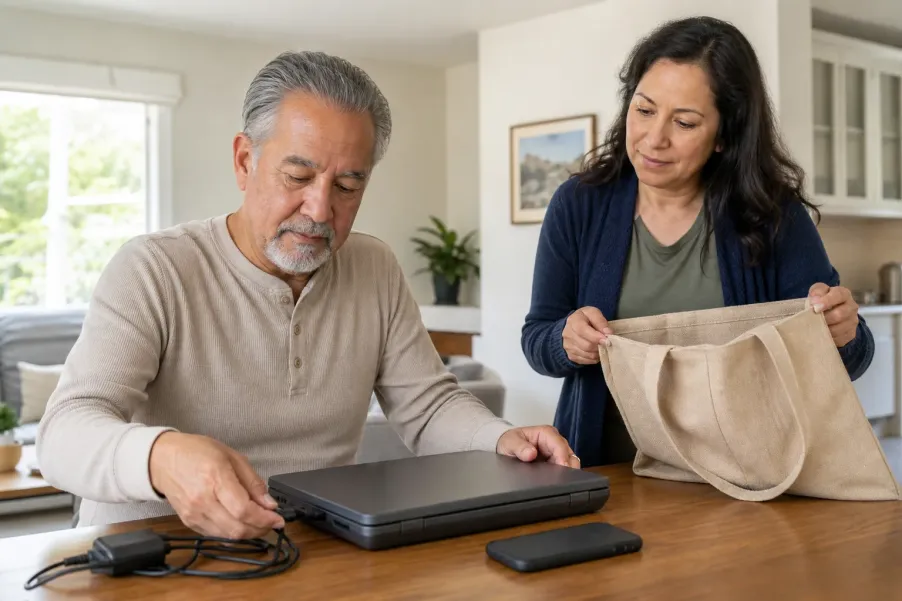
Before recycling an old phone or computer, save the files you still want, confirm the backup from another device, sign out of accounts, remove SIM cards and removable storage, and use the manufacturer’s official erase or reset process. Then verify that the device starts at its setup screen and confirm the current Los Angeles County collection rules before leaving home.
Protect memories first
Do not erase anything until photos, contacts, documents, passwords, and other wanted records have been copied and opened successfully somewhere else.
Release the device correctly
Account removal, sign-out, activation-lock steps, and a factory reset are different tasks. Follow the official instructions for the exact device and operating system.
Use a current recycler
Los Angeles County options, schedules, address requirements, and accepted items can change. Confirm the location and rules on the day you plan to go.
Pause when access is uncertain
If the device will not turn on, cannot be unlocked, belongs to an employer, or contains highly sensitive records, get qualified help before handing it over.
An unused phone, tablet, or computer can hold years of photos, contacts, tax records, saved passwords, email, and account access. Placing it in a recycling box without preparation can also leave the next handler with an activation lock or an unusable device. A careful handoff protects the older adult’s information while making responsible reuse or recycling more practical.
This guide is for a personally owned consumer device. It does not promise forensic data destruction, certify a recycler, replace manufacturer support, or cover an employer, school, medical practice, public agency, or other managed device. If a device stores regulated, business, legal, clinical, or unusually sensitive information, follow the owner organization’s process instead of this household checklist.
Should the device be reused, donated, traded in, or recycled?
Start with condition and ownership, not convenience. A working device that still receives security updates may have reuse or trade-in value. A damaged, obsolete, swollen, wet, or unsafe device may need a specialized recycling route. Confirm that the older adult owns the device and has finished any installment, lease, return, insurance, or trade-in obligation before giving it away.
Reuse or donate
Consider this only when the device works, the new recipient is known or the organization is verified, and the account-release and reset steps can be completed.
Manufacturer trade-in
Use the manufacturer’s current instructions, note any condition requirements, and keep the shipment or handoff receipt until the program confirms the result.
E-waste recycling
Choose this when reuse is not realistic. Confirm that the collector accepts that exact device type and ask how it handles embedded batteries or damaged equipment.
Do not place a computer, phone, tablet, monitor, or loose lithium-ion battery in a curbside recycling cart. Do not assume a bulky-item pickup will accept electronics. The bulky-item pickup preparation guide explains why each item and local program should be confirmed separately.
What should you record before changing anything?
Write a short device inventory using information you can verify without exposing secrets. Record the device type, approximate model, serial number if it is easy to find, current owner, mobile carrier if applicable, whether it turns on, and the intended destination. Do not put passwords, passcodes, full account numbers, recovery codes, or a copy of identification on the same sheet.
- Photograph the device from several angles to document its condition before a trade-in or shipment.
- List the charger, case, mouse, keyboard, stylus, or other accessories that belong with it.
- Note whether a SIM card, memory card, USB drive, disc, or other removable media is present.
- Check for visible damage, a bulging case, unusual heat, a chemical smell, or a swollen battery.
- Record which trusted person is helping and where the device is expected to go.
The home inventory photo walkthrough offers a calm way to organize condition photos. Keep those images private and remove them later if they are no longer needed.
How do you preserve wanted files before erasing a device?
A backup is not proven merely because a progress bar finished. Identify what matters, copy it using the account or device’s supported method, and then open a sample from the destination. For a phone, check contacts, recent photos and videos, messages that must be kept, authenticator or password-manager access, notes, voice recordings, and any transit or wallet item that needs transfer. For a computer, check the desktop, documents, downloads, photos, email archives, browser bookmarks, tax files, creative projects, and locally stored application data.
- Choose the destination. Use the person’s new device, an account they control, or an external drive they can identify and store safely.
- Copy only what should be kept. Avoid moving years of unknown clutter when a focused set of records and memories is enough.
- Verify from somewhere else. Open several recent and older files, confirm contacts, and check that important folders are not empty.
- Confirm account access. Make sure the older adult can sign in on the new device before removing the old one from trusted-device or recovery lists.
- Wait before erasing. If anything is missing or uncertain, pause and ask for help. A reset may not be reversible.
For a helper session, use the technology help checklist to set privacy boundaries and define the one task being completed. The older adult should control passwords and approve every deletion.
Do not forget account recovery
A phone may receive sign-in codes, and a computer may be a trusted device for email or financial accounts. Before erasing it, confirm that the person has another working recovery route. Never ask a recycler to solve an account lock or accept a written password.
Which accounts, cards, and accessories should be removed?
Finish services and account connections before the reset. Transfer or cancel cellular service as appropriate, remove the physical SIM card, eject memory cards, disconnect external drives, and unpair watches, earbuds, keyboards, or other accessories that will be kept. Remove the device from theft-protection, activation-lock, or find-my-device services using the manufacturer’s current process.
Do not delete the person’s entire cloud, email, Apple, Google, or Microsoft account merely to remove it from one device. Account deletion can erase information across every connected device. Use the device-specific sign-out or account-removal path and read each confirmation screen aloud before approving it.
If phone numbers, carrier plans, transit passes, payment cards, or authentication apps are involved, finish their transfer first. The goal is to release the old hardware without breaking access to services the older adult still uses.
Which erase or reset path should you use?
Menu names differ by model and software version. Begin with the manufacturer’s official support page for the exact device, not a sponsored video, pop-up technician, or remote-access caller. Keep the device plugged in when the instructions allow, use a trusted home network if one is needed, and do not interrupt a reset simply because the screen stays dark for several minutes.
| Device | Official preparation route | Important boundary |
|---|---|---|
| iPhone or other Apple device | Use Apple’s device preparation guidance to back up, erase, unpair related devices, remove a physical SIM when present, and follow the current trade-in or handoff steps. | Confirm that wanted information exists elsewhere and that activation-lock requirements are satisfied before surrendering the device. |
| Android phone or tablet | Follow Google’s factory-reset guidance and the device manufacturer’s instructions. Know the account credentials, back up data, and use the supported settings path. | Reset protection may require prior account or screen-lock information. Do not hand a recycler the password to work around it. |
| Windows computer | Microsoft’s Reset your PC guidance identifies “Remove everything” and a drive-cleaning option for a PC being donated, sold, or recycled. | Microsoft states that its consumer erasure feature does not meet government or industry data-erasure standards. Sensitive managed devices need the owner organization’s process. |
Chromebooks, Macs, Linux computers, older operating systems, locked devices, and damaged storage require their own official instructions. If you cannot identify the model or supported process, stop and use a trusted in-person helper or manufacturer support rather than experimenting with random key combinations.
How can you verify the reset without setting the device up again?
When the supported process finishes, the device should normally arrive at its initial welcome or setup screen. Do not proceed through setup with the older adult’s account just to test it, because that can link the device again. Check only enough to confirm that personal photos, messages, desktop files, and account profile are not immediately visible.
Setup screen appears
The device is asking a new user to begin language, region, network, or account setup rather than opening the former owner’s home screen.
Account lists are current
From another trusted device, confirm that the old hardware no longer has unintended access while preserving any record needed for theft protection or trade-in tracking.
Removable items are out
Check the SIM tray, memory-card slot, disc drive, USB ports, and case pockets one final time before packing the device.
A consumer factory reset reduces ordinary exposure but should not be described as guaranteed forensic destruction. If that level of assurance is required, use a qualified data-destruction provider with an appropriate documented process.
Where can Los Angeles County residents take e-waste?
Los Angeles County Public Works describes unwanted computers, televisions, mobile phones, and other electronics as e-waste and directs residents toward county roundup events, permanent collection centers, or specialized local programs. Use the current CleanLA collection-center page to confirm a location, hours, residency or address requirement, vehicle procedure, closure notice, and accepted device type.
Do not rely on an old flyer or search snippet. Temporary events move, permanent-center schedules can change, and a site may stop accepting material when capacity is reached. Call the official program when a heavy monitor, damaged battery, business-owned device, or unusual item is involved.
The existing household hazardous-waste drop-off checklist explains the broader Los Angeles County vehicle and collection routine. Use that guide for trip preparation while following this Article for accounts, backups, and device reset.
For ordinary eligible drink cans and bottles, use the beverage container recycling visit guide to sort a manageable batch, confirm a current redemption site, and choose a comfortable count-or-weight process.
How should you pack and document the handoff?
Power the device down, keep it dry, and prevent it from sliding inside the vehicle. Use a sturdy tote or box that the older adult can lift without strain. Keep loose cables together. Do not tape over vents, crush a device, puncture a battery, or place a swollen or hot device in a sealed container. Ask the official collection program how to handle a damaged battery before transporting it.
- Place the device in the trunk or designated vehicle area if the collection program instructs you to do so.
- Bring only the accessories the program accepts or the new recipient expects.
- Keep personal papers, backup drives, recovery codes, and passwords at home.
- Ask for a receipt when a trade-in, donation, or destruction service provides one.
- Record the date, destination, device description, and confirmation number without storing unnecessary private data.
- Remove the item from the household inventory only after the handoff is complete.
When should you stop and get help?
Stop when the device belongs to someone else, will not power on, cannot be unlocked, has a swollen or damaged battery, is managed by an employer or school, contains highly sensitive records, or shows a warning you do not understand. Do not pay an unexpected caller for remote access, share a one-time code, or let a stranger watch the older adult enter a password.
A trusted helper can sit beside the owner, read instructions, connect a backup drive, and document the handoff. The owner should approve what is copied and erased. For additional planning tools, browse the Senior Support Guides.
This Article offers household technology and recycling preparation, not cybersecurity certification, legal advice, or a guarantee that deleted data is unrecoverable. Manufacturer instructions and the receiving program’s current rules control.
Would a calm technology-help plan make this easier?
All Seniors Foundation can help an older adult or family organize practical questions, privacy boundaries, and a manageable support session before the official recycler or manufacturer takes over.
Frequently asked questions
Is deleting photos and files enough before recycling a device?
No. Ordinary deletion can leave accounts, settings, app data, and other information on the device. First verify a backup, remove accounts and removable media, then use the manufacturer’s supported erase or factory-reset process for that exact device.
Should I remove the SIM card before recycling a phone?
Remove a physical SIM card and any removable memory card unless the carrier or receiving program gives a different verified instruction. Transfer or cancel cellular service first, and never leave a written PIN or account password with the phone.
Does a factory reset guarantee that no one can recover my data?
No. A supported consumer reset is an important privacy step, but it is not a promise of forensic data destruction. A business, medical, legal, government, or unusually sensitive device may require a qualified documented sanitization or destruction process.
Can I put an old phone or computer in a curbside recycling bin?
Do not place electronics or loose lithium-ion batteries in a curbside recycling cart. Use a current official e-waste, manufacturer take-back, or other accepted program and confirm that it takes the exact device before traveling.
What if the old device will not turn on or cannot be unlocked?
Do not guess, force the case open, or give a recycler the owner’s password. Ask the manufacturer or a qualified trusted provider about the available data and recycling options, especially when the device contains sensitive information or a damaged battery.
How do I confirm a Los Angeles County e-waste location is open?
Check the current CleanLA collection-center or event page on the day of the trip and confirm hours, closures, residency or address rules, vehicle procedures, and accepted items. Call the official program when the device or battery condition is unusual.





