
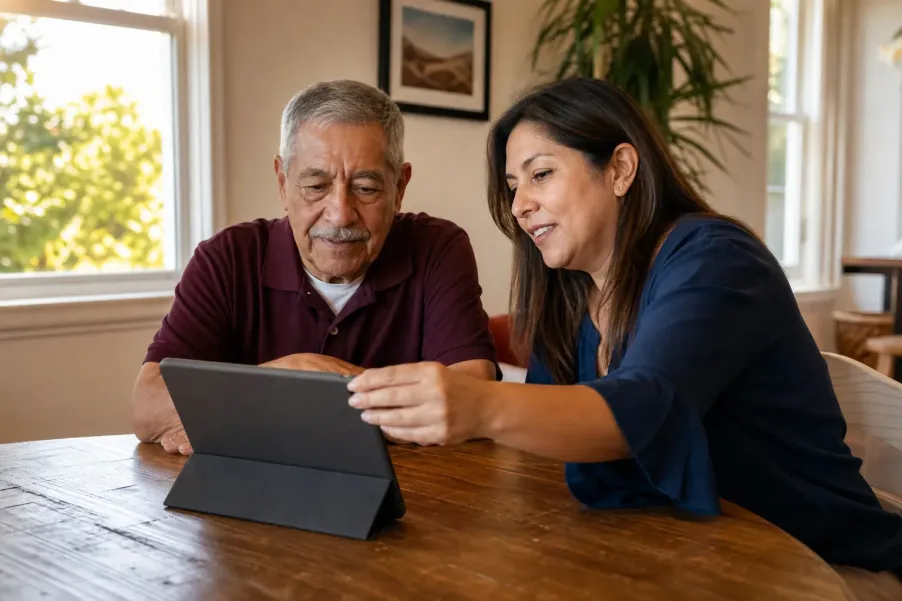
Practice a family video call by choosing one platform, using the device in its usual location, and completing a short rehearsal with one trusted person. Check sound, camera position, lighting, captions or volume controls, and a simple telephone backup. End by repeating the exact steps for the next call, without sharing passwords, codes, or unnecessary personal information.
Four useful takeaways for a calmer practice call
- Practice one real call path, not every feature. Choose the device and platform the family expects to use, then repeat the same joining steps.
- Test the whole experience. Clear sound, a steady device, comfortable lighting, readable controls, and an agreed backup matter more than a perfect camera picture.
- Keep control of the device and account. A helper can explain or point, but should not request passwords, one-time codes, financial details, or unneeded remote access.
- Write down only the next-call routine: who starts, when to answer, how to adjust sound, and when to switch to an ordinary phone call.
What should a family video-call practice accomplish?
A useful practice call should answer one practical question: can the older adult and family member start, hear, see, and end the call using a routine they can repeat? It is not a technology exam. The goal is not to memorize every button, install every optional feature, or make the picture look like a television studio.
Begin with a real situation. Perhaps a daughter usually starts the Sunday call, a grandson sends a meeting link, or two siblings use the same calling app. Identify who normally starts the call, which device rings, what the invitation looks like, and what the older adult needs to tap. If the family changes platforms every week, simplify the family plan before asking the older adult to learn more controls.
One device
Use the phone, tablet, or computer that will be available for the real call. Practicing on a helper’s different device can create a routine that does not transfer.
One trusted caller
Choose a patient family member or friend who can wait while the older adult completes each step and can describe what appeared on the other end.
One repeatable outcome
Finish when both people can state the next-call time, starting method, sound adjustment, ending step, and telephone backup.
If the device itself needs broader preparation, use the separate Technology Help Session Checklist before the family rehearsal. That guide helps define a narrow support question; this Article focuses specifically on completing one family video call.
How do you choose one call path without creating confusion?
Use the platform that the family already uses and that the older adult’s device can run through its current official app or browser instructions. Do not select a platform because someone says it is easiest for everyone. A familiar invitation, a stable account, and a willing practice partner may matter more than a general feature comparison.
Before changing anything, identify whether the call arrives as an app notification, ordinary phone-style ring, texted link, emailed link, or calendar invitation. Then decide which single route the family will use. Remove duplicate test links from the practice conversation so the older adult is not asked to guess which one is current.
Confirm these five details with the family
- The exact app or browser route for the next call
- Who starts the call and which name should appear
- Whether a link is sent, and where it will arrive
- Whether the older adult must sign in or can join another approved way
- The ordinary telephone number to use if the video call does not work
Do not create a new account, change a password, add payment information, or grant broad device permissions merely to finish a casual practice. If an account or permission change is truly required, stop and use the official instructions for that exact device and platform with the account owner’s informed approval.
How should you prepare the device and room?
Place the device where the older adult expects to sit during the real call. A stable table or stand is usually easier than holding a device for the entire conversation. Position the camera near eye level if that is comfortable, but do not trade stability for a flattering angle. Keep charging cables away from feet and walking paths.
Use light that falls toward the face rather than a bright window directly behind it. Reduce strong glare on the screen, and keep the background free of mail, medication labels, account numbers, calendars, photographs, or other information the caller does not need to see. Close unrelated apps and silence optional notifications only if the older adult understands how to restore them.
Room and device checklist
- Device charged or safely connected to power
- Stable stand or table at a comfortable height
- Camera lens unobstructed and reasonably clean
- Comfortable chair and reachable controls
- Face lit from the front or side
- Background clear of private information
- Volume set at a safe, useful starting level
- Telephone backup within ordinary reach
For a larger display or easier reading, the smartphone text-size and screen-magnification guide provides a separate check. Availability and control names vary by device, software version, language, and region, so confirm changes on the actual device rather than promising a particular feature.
What should happen during a 15-minute rehearsal?
Keep the first practice short enough to repeat without fatigue or frustration. The family member should call from another room or location so the test includes the real invitation and connection path. If both people sit beside the same device, they may never discover which sound, permission, or joining step fails at a distance.
| Minute | Practice action | What to confirm |
|---|---|---|
| 0-3 | Start the call through the agreed route. | The expected caller name, notification, link, or meeting screen appears, and the older adult knows which control to use. |
| 3-6 | Exchange an ordinary greeting and a full sentence. | Both people can hear without shouting, severe echo, or the device being held against the face. |
| 6-9 | Adjust one comfort control. | The older adult can change volume, reposition the device, or use an available caption control without losing the call. |
| 9-12 | Practice one interruption. | Both people know what to do if video freezes, sound disappears, or the call drops. |
| 12-15 | End the call and repeat the next-call plan. | The older adult can leave the call, recognize that it ended, and state who will call next and when. |
If a step fails, name the step rather than the person: “The microphone did not connect” is more useful than “I did it wrong.” Record the exact point of failure and stop changing unrelated settings. One narrow issue can be revisited later through official help or a trusted in-person session.
Which comfort and accessibility checks are worth practicing?
Ask the older adult what makes the call easier to follow. Useful adjustments may include device volume, external speakers already owned and understood, caption controls when the platform provides them, a larger window, stronger text contrast, a less distracting view, or a quieter room. The right choice depends on the device, hearing and vision preferences, and the platform’s current options.
Practice only the controls needed during the call. A helper can point to a button, describe its location, or write a short sequence in the older adult’s preferred format. Avoid covering the device with unlabeled stickers, adding many new shortcuts, or changing the entire home screen during the same session. Too many changes make it difficult to identify what helped.
Sound
Confirm the starting volume, whether the microphone is muted, and which speaker the device uses. Avoid maximum volume unless it is genuinely needed and comfortable.
Picture
Use a stable view that shows the older adult comfortably. The call remains useful even if the camera is not centered perfectly.
Conversation pace
Family members can speak one at a time, pause after questions, and announce when they are changing rooms or adding another person.
How can the older adult keep control and protect privacy?
A family practice call should not require the older adult to surrender account control. The helper does not need the password, one-time sign-in code, financial information, Social Security number, medical details, or full contact list. If the device displays a permission request, read it aloud and explain what will change before the account owner decides.
Keep the camera pointed only where intended. Before adding another participant, say who the person is and ask whether the older adult wants them included. Do not record, take screenshots, or share images from the call without clear consent from everyone involved. Platform settings and laws can vary, so the safest routine is to obtain permission before any recording or capture.
The Family Contact Ring-Through Test can help confirm which ordinary call route reaches the device. For a suspicious voicemail or unexpected callback request, use the separate Voicemail Message Log and Safe Callback Routine.
What backup plan should the family agree on?
Choose the backup before the picture freezes or the sound disappears. A simple backup is often an ordinary telephone call placed through a saved number. The family should agree who calls whom, how long to wait, and whether the video session should be ended first to prevent echo.
| If this happens… | Try one bounded step | Then use the backup |
|---|---|---|
| The picture freezes but sound continues. | Wait briefly and continue by audio if both people agree. | If conversation becomes difficult, end the session and use the saved telephone number. |
| No one can hear the older adult. | Check the visible mute control once and confirm the intended microphone if that choice is familiar. | Stop changing settings and switch to the agreed telephone route. |
| The invitation or link looks different. | Do not guess, sign in through an unfamiliar page, or enter a code sent unexpectedly. | Call the family member through the separately saved number and confirm what they sent. |
| The call drops repeatedly. | Try reconnecting once through the same known route. | Move the conversation to the telephone and schedule technical help separately. |
End with a plain-language routine: “You will call on Sunday at 4:00 p.m. through the same app. I will answer on the tablet. If we cannot hear each other after one try, you will call my saved phone number.” Keep that note near the device without including a password or code.
Video calls can support existing relationships, but they do not need to replace in-person or community contact. The guide to choosing a senior social club offers a separate way to compare group fit and participation.
Which common mistakes make practice harder?
Changing too much at once
Installing a new app, changing the password, reorganizing the home screen, adding accessories, and testing a call in one session hides the source of problems.
Taking over the device
A helper who performs every tap proves only that the helper can make the call. Let the older adult complete the repeatable steps at a comfortable pace.
Practicing side by side only
A true rehearsal needs the trusted caller on another device in another room or location so the invitation, audio, connection, and ending steps are real.
Continuing after frustration
Stop after one clearly named issue. A shorter successful repetition is more useful than a long session that ends with several unexplained changes.
Do not promise that a platform will work on every device, that captions or accessibility controls will always be available, that public Wi-Fi will be private, or that a library worker can configure a personal account. Confirm current requirements with the platform, device maker, internet provider, or local facility responsible for that part of the setup.
Which official instructions can support the practice?
- LA County Library public-computer information provides a local route for current computer-access and session details. Confirm what a specific library offers before traveling, and do not assume staff can manage a personal account or device.
- Apple’s current FaceTime instructions for iPhone explain the platform-specific call route. Controls and availability can vary by device, software, account, language, country, or region.
- Google Meet camera and microphone troubleshooting covers permissions and device checks for that platform. Use only the section that matches the actual setup.
- Zoom’s official audio-testing guidance provides a platform-specific way to test speaker and microphone behavior before a call.
Official instructions can change. Recheck the page for the exact platform and device being used rather than relying on old screenshots or a family member’s different phone. If the older adult needs broader non-emergency support navigation in Los Angeles County, keep one clear question and one preferred callback route.
For reading along during a call, use the phone call captions setup and practice guide to check supported device settings, try a short conversation, and confirm details without treating automatic text as a perfect record.
Frequently asked questions
How long should a family video-call practice last?
About 15 minutes is often enough to test the invitation, sound, camera position, one comfort control, a dropped-call response, and the ending step. Stop sooner if the older adult becomes tired or frustrated.
Should the older adult learn more than one video-call platform?
Not during the first rehearsal. Practice the platform the family actually plans to use. Add another platform only when there is a real need and the first routine is already comfortable.
Does a family helper need the older adult’s password?
No. A routine family video-call practice should not require sharing a password, one-time code, financial information, or other sensitive account details. The account owner should remain in control of sign-in decisions.
What if the video works but the sound does not?
Check the visible mute and volume controls once, using the official instructions for that device and platform. If sound still fails, stop changing settings and use the agreed telephone backup.
Can a public library provide a place for a video call?
Facilities, computer rules, reservations, privacy, software, and staff assistance vary. Check the specific library’s current information before traveling, and avoid discussing private matters in a public space.
How can the family tell whether the practice was successful?
Success means the older adult can repeat the starting, sound, ending, and backup steps for the next real call. A perfect picture, every optional feature, or independent troubleshooting of every problem is not required.
Need help organizing one next question?
All Seniors Foundation can discuss non-emergency senior-support navigation in Los Angeles County when help is available. The foundation does not control devices, platforms, accounts, internet service, library resources, or technical outcomes.





