
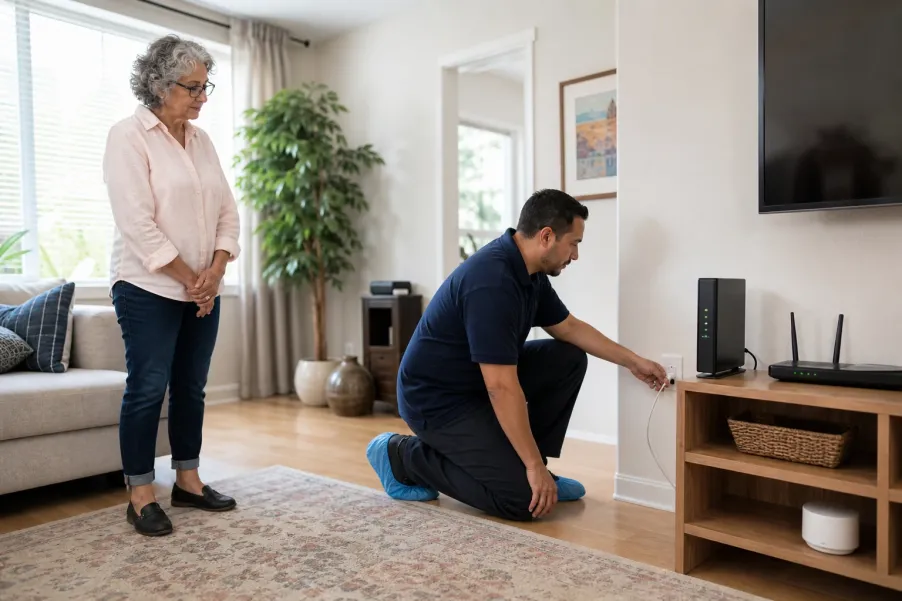
Prepare for a home internet technician visit by confirming the appointment through your provider’s official account or known phone number, recording the exact problem, and clearing a safe path to the modem, router, cable outlet, and any agreed work area. Keep passwords private, confirm possible charges before work begins, and test the connection on your own devices before the technician leaves.
What should a well-prepared internet service visit accomplish?
- You know who scheduled the visit, the expected arrival window, and how the provider says the technician will identify themselves.
- The technician can safely reach the approved equipment and cable route without moving heavy furniture or handling unrelated belongings.
- You can describe when the problem happens, which devices are affected, and what you already tried without exposing passwords or private account information.
- Before the visit ends, you understand the work performed, any charge or equipment change, and whether the connection works where you actually use it.
An internet repair or installation visit is easier when the household separates three questions: Is this appointment legitimate? Can the technician safely reach the equipment? What result will show that the problem is fixed? Without that preparation, a short service window can turn into a search for account details, a rushed furniture move, or a vague “it seems better” conclusion.
This guide is for a provider appointment that the resident or an authorized household member requested. It does not assume that every company uses the same equipment, identification, fees, or testing process. Los Angeles County residents may live in single-family homes, apartments, senior communities, or buildings with separate management rules, so confirm the provider’s instructions and the building’s access requirements for the exact address.
How do you confirm that the appointment is legitimate?
Start from a route you already trust: the provider’s official app or account page, the phone number printed on a recent bill, or a bookmarked official website. Confirm the date, arrival window, service address, reason for the visit, and the name or identification method the provider supplies. If a call, text, email, or visitor appears unexpectedly, do not rely on the contact information that came with that message.
The Federal Trade Commission warns that tech-support scammers use urgent claims, unexpected contact, remote-access requests, and unusual payment demands. Los Angeles County’s Department of Consumer and Business Affairs gives similar advice to older adults: contact the known company directly and be cautious with unsolicited tech-support or door-to-door claims. A legitimate appointment can be rechecked without arguing at the door.
Use a simple confirmation sequence
- Close the unexpected message or end the call without clicking its link or using its callback number.
- Open the provider’s official account route or call the known number on the bill.
- Ask whether a technician is assigned to the exact address and service reason.
- Ask how the technician should identify themselves and whether any payment is expected during the visit.
- If the visit cannot be confirmed, keep the door closed and contact the provider or building manager.
If managing the confirmation feels difficult, arrange for a trusted person to join by phone or be present. The technology help session checklist explains how to define a helper’s task without giving them unrestricted access to every account or device.
What details should you record before the technician arrives?
Describe the problem in plain observations rather than trying to diagnose it. Write down when it began, whether it is constant or intermittent, which rooms and devices are affected, and what the equipment lights do during the problem. Note whether the issue affects Wi-Fi only, a wired device, phone service supplied by the same equipment, or the whole connection.
Time and pattern
Record two or three recent examples with the time, duration, and whether the connection returned on its own.
Affected devices
Name the television, phone, tablet, or computer that failed, plus one device that still worked if any did.
Location
Note whether the problem happens beside the router, only in a distant room, or throughout the home.
Steps already tried
List only what you safely did, such as restarting provider equipment once or checking a known outage notice.
If you run a speed test, save the date, time, room, device, connection type, and result. The Federal Communications Commission notes that speed tests can help document performance, but one result does not diagnose every problem. Wi-Fi distance, device limits, neighboring networks, service outages, and the subscribed plan can all affect what you observe.
Keep the problem note separate from passwords, account recovery codes, Social Security numbers, banking information, and medical information. A technician may need an account holder or authorized adult to approve work, but the household should ask the provider in advance what identification or authorization is actually required.
How should the equipment area be prepared?
Identify the modem, router, provider gateway, cable or fiber entry point, and any room where the issue is strongest. Clear ordinary clutter and create a stable walking path. Secure pets according to the provider’s instructions. In an apartment or gated property, confirm parking, front-desk, gate, elevator, equipment-room, and building-manager access before the arrival window.
Safe to do yourself
Move small loose items, label which device has the problem, turn on a light, place a stable chair nearby, and make the normal equipment shelf reachable.
Ask a helper
Arrange pet care, meet the technician downstairs, translate questions, move a lightweight item that is awkward for you, or stay during the appointment.
Leave for the technician or building
Do not climb, move heavy furniture, open electrical panels, pull cable from walls, enter locked utility rooms, or alter provider-owned equipment.
Do not create a new hazard to make the visit faster. A technician can explain what area must be reached and whether another appointment or building authorization is needed. If substantial drilling, new wiring, wall access, or a separate paid repair is proposed, pause and ask for the scope in writing. The home repair estimate preparation guide offers a separate method for comparing written work, cost, and responsibility.
How can you protect passwords and personal information?
Keep the Wi-Fi password and provider-account password private. If a setup step requires a password, ask the technician to turn the screen toward you and let you type it. Do not read a password aloud, hand over a password notebook, or leave unrelated financial, legal, health, or identity documents visible in the work area.
CISA’s Secure Our World guidance recommends strong unique passwords, multifactor authentication, software updates, and phishing awareness. Those habits matter before and after the visit. A technician may show you where a router setting lives, but you remain responsible for deciding who may access the account and for storing the new network name or password safely.
- Close banking, email, health, and document windows on devices used for testing.
- Use a guest network for a temporary test when the provider supports it and you understand the setting.
- Do not approve remote access on an unrelated computer merely because someone says the router has a problem.
- Ask before any factory reset because it may erase the network name, password, device settings, or other custom configuration.
- After the visit, confirm that the account email, phone number, recovery method, and authorized users remain correct.
What should happen when the technician arrives?
Keep the door closed until the visit matches the confirmed appointment. Ask for identification using the method the provider described. In a managed building, ask the front desk or building manager to follow its normal vendor procedure. A uniform, vehicle, caller ID, or confident explanation alone is not proof.
Once identity is confirmed, show the technician the prepared equipment area and explain the problem note. State boundaries early: which rooms may be entered, whether shoes or covers are requested, who may approve equipment changes, and whether another person is joining by phone. Do not leave a visitor alone with unrelated documents, unlocked devices, keys, medication, or valuables.
A short opening script
“The provider confirmed this appointment for intermittent internet service. The modem and router are here, and the strongest problem is in the back room. I have a short record of when it happens. Please explain any charge, equipment replacement, reset, drilling, or new wiring before you begin, and let me enter any passwords myself.”
What questions should you ask before work begins?
Ask what the technician plans to test first and what would require permission. Confirm whether the visit is covered by the service plan, whether equipment is rented or owned, whether a replacement changes the monthly charge, and whether new wiring or drilling needs property-owner approval. If the answer differs from what the provider quoted, pause and call the official account number.
Ask for plain language. “The signal is weak at the line entering the home” is more useful than a string of unexplained measurements. Ask what result will show that the work succeeded, which equipment lights should normally be on, and what problem would require another provider call. Do not sign a blank or incomplete work acknowledgment.
How should you test the internet before the technician leaves?
Test the connection in the places and on the devices that matter to the household. A test beside the router can pass while a video call still fails in the room where it is normally used. Pick two or three ordinary tasks instead of installing unfamiliar software or exposing private accounts.
Near the equipment
Confirm that one familiar page loads, the connection stays up, and the modem or gateway shows the normal state the technician explains.
Where service matters
Repeat a familiar task in the bedroom, den, or other room where the earlier failure occurred.
On a real household task
Place a brief family video call, stream a familiar program, or load a frequently used site without sharing sensitive content.
If video calling is important, the family video call practice guide provides a calm, separate test of audio, camera, controls, and connection. Do not let one successful speed test substitute for the task the resident actually needs.
What should the household record after the visit?
Keep a short visit record with the date, provider case or work-order number, equipment changed, agreed charges, technician’s explanation, test performed, and promised follow-up. Save the provider’s receipt or account confirmation. Do not store passwords in the visit note.
If the problem returns, record the time and symptom again, then contact the provider through the official route and refer to the case number. If a billing or service dispute cannot be resolved, the FCC maintains a Consumer Inquiries and Complaints Center for broadband experiences and complaints. The FCC is a follow-up route, not a replacement for first documenting the issue with the provider.
When a family member needs the result, share only what is necessary: “The gateway was replaced, no added monthly charge was stated, and video calling worked in the bedroom at 3:15 p.m.” The family care visit handoff note offers a concise structure for recording responsibilities and next steps without copying private account details.
Where can Los Angeles County older adults find trusted help?
For appointment identity, equipment, pricing, or outage questions, start with the internet provider through a known official route. Apartment and senior-community residents may also need their building manager for access or wiring ownership. For suspected fraud or pressure tactics, Los Angeles County Department of Consumer and Business Affairs offers consumer education and assistance; the FTC accepts fraud reports.
All Seniors Foundation can help families navigate general support information but cannot verify a private company’s employee, diagnose a network, guarantee service, or approve charges. Browse the Senior Support Guides for other practical household routines.
Official consumer and internet-safety sources
- Federal Trade Commission: How To Spot, Avoid, and Report Tech Support Scams for unexpected-contact, remote-access, payment, and verification warnings.
- Federal Communications Commission: Home Network Tips for plan checks, speed-test context, router restarts, equipment limits, and in-home Wi-Fi conditions.
- Cybersecurity and Infrastructure Security Agency: Secure Our World for strong passwords, multifactor authentication, updates, and phishing awareness.
- Los Angeles County Department of Consumer and Business Affairs: Smarter Seniors for local tech-support, unsolicited-visitor, pressure, and direct-verification guidance.
Provider procedures, equipment ownership, charges, building access, and technician identification vary. Confirm the current rules for the exact account and address before the visit.
Frequently asked questions
Should I give an internet technician my Wi-Fi password?
Keep passwords private. If a legitimate setup step requires the Wi-Fi or provider-account password, ask the technician to let you type it yourself. Do not read passwords aloud, hand over a password notebook, or approve access to unrelated accounts or devices.
How can I verify an internet technician at my door?
Use the provider’s official account page, app, or known phone number to confirm the exact appointment, address, reason, arrival window, and identification method. Do not use a link or callback number from an unexpected message. If the visit cannot be confirmed, keep the door closed.
Should I move furniture before an internet service visit?
Move only small items you can handle safely and clear an ordinary walking path to agreed equipment areas. Do not lift heavy furniture, climb, open electrical panels, pull cable from walls, or enter locked building rooms. Ask the provider or building manager what access is actually required.
What should I test before the technician leaves?
Test a familiar page near the router, repeat a normal task in the room where service was poor, and try one important household activity such as a brief video call. Confirm any equipment change, charge, case number, and follow-up step before closing the visit.
Can a technician charge me for work during the visit?
Charges depend on the provider, service plan, equipment, and requested work. Confirm possible fees through the official account route before the visit and ask for the scope and price before approving extra work. Pause if a visitor demands an unexpected or unusual payment.
What if the internet problem returns after the appointment?
Record the time, affected devices, room, and symptom again. Contact the provider through its official route and reference the visit or case number. Keep receipts and promised follow-up details. If a broadband service or billing dispute remains unresolved, review the FCC’s official complaint options.
Need help finding a trusted support route?
All Seniors Foundation can help Los Angeles County older adults and families navigate general support information without taking control of private accounts or promising a provider outcome.





