
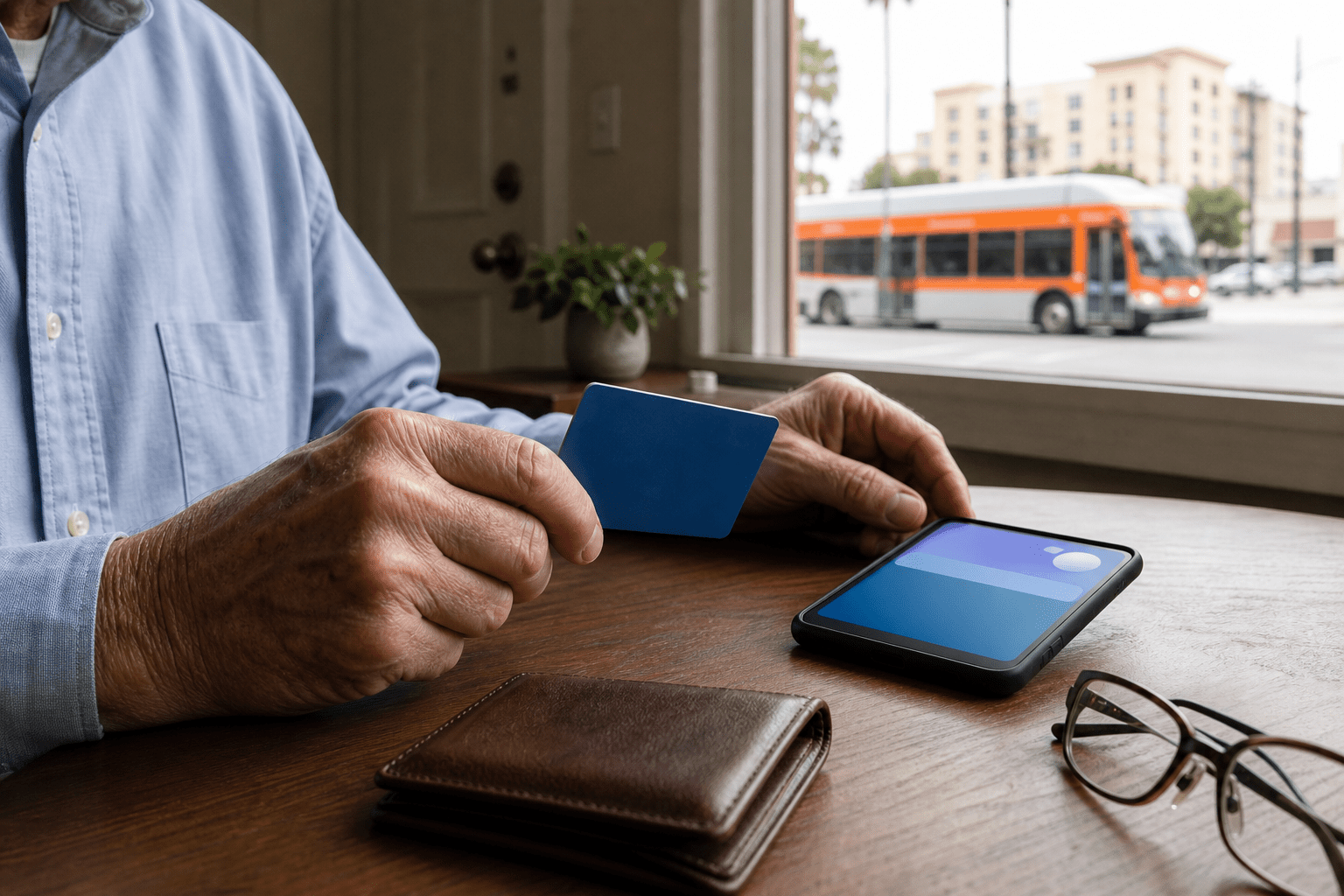
A TAP card balance and reload check can take only a few minutes: identify the exact physical or digital card you will use, check its balance through an official TAP method, add Stored Value only if needed, allow enough time for the purchase to become available, and confirm the result before leaving. Keep the card number private and use TAP Customer Service when a balance or pending purchase does not look right.
Use the trip card
Check the same plastic card, phone, or watch you plan to tap. A balance on another card will not help at the fare reader.
Use an official route
Check through the TAP app, the official TAP website, a TAP vending machine, or TAP Customer Service. Avoid links from unexpected messages.
Allow activation time
TAP says fare bought online or by phone may take up to one hour to become available at a bus farebox or rail validator. Reload early.
Protect the card number
Enter it only on the official TAP service. Do not photograph, email, text, or post the full number for someone else to check.
Confirm before leaving
Look for the updated balance or purchase status. If it remains pending or unclear, use an in-person option or call TAP before the trip.
Prepare the exact TAP card you will use
TAP is the reloadable fare system used by Metro and many other transit agencies in Los Angeles County. The official Metro payment page explains that riders can add Stored Value through several channels, including the TAP app, taptogo.net, TAP Customer Service, vendors, vending machines, and supported bus fareboxes.
Start by placing the exact trip card on a well-lit table. If you use a digital TAP card, open the phone or watch that contains it. Do not gather every old card in the household and guess which one has value. A physical card and a digital card are separate fare media even when they belong to the same person.
Name the trip
Write the travel date and whether you expect to use bus, rail, or both. This keeps the check connected to a real ride instead of becoming an account-cleanup project.
Choose the payment form
Decide whether you will tap a plastic TAP card, a digital TAP card, or another payment form accepted by the agency. Keep that same form with you.
Inspect without sharing
Check that a plastic card is not cracked or badly bent and that a phone has enough charge. Do not copy the full card number into a text message or public note.
If the trip itself is unfamiliar, finish the fare check first and then use the one-ride public transit practice checklist for the route, stop, return plan, and calm backup steps. A balance check does not replace trip planning.
How can you check a TAP card balance safely?
The Metro fare-capping page lists official balance and progress-check routes: a TAP vending machine, the TAP app, taptogo.net, or TAP Customer Service. Metro also points to its official Transit Card Status tool, where a rider can enter a card number without first creating an account.
- Begin from a saved official address. Type taptogo.net yourself, use the TAP app already installed from the device’s official app store, or use a TAP vending machine.
- Match the card carefully. If you have more than one card, compare only the final few digits shown in the official account or app. Never display the full number in a shared household note.
- Read both balance and status. Look for Stored Value, a pass, a pending purchase, or a card-status message. These are different pieces of information.
- Record a simple result. A private note can say “checked Monday, enough for planned trip” or “reload still pending.” It does not need a card number, account password, or screenshot.
- Sign out on a shared device. Close the browser and do not save the TAP password or card number on a public or borrowed computer.
A phone screenshot can accidentally show an account name, card number, or purchase history. If a family helper is assisting remotely, use a voice call and let the cardholder enter private details on the official page. The helper can read the steps without seeing the credentials.
Pause when a message creates urgency
Do not reload through a link in an unexpected text, email, social post, or pop-up that says the card will expire immediately. Open the TAP app or official website separately. If the card status is unclear, use the current contact information on Metro’s official site.
Choose the reload method that fits the trip
The best method is the one the rider can complete and confirm without rushing. The official TAP buy-and-reload page describes app, vendor, vending-machine, bus-farebox, online, and phone options. Availability and payment methods differ, so review the current page before relying on one route.
TAP app
Useful when: the rider already has the official app and recognizes the correct card.
Confirm: the selected card, reload amount, payment result, and displayed balance before closing the app.
Official website or phone
Useful when: reloading from home before the trip.
Confirm: the purchase status and allow for the official availability window before boarding.
TAP vending machine
Useful when: the rider can visit a Metro rail or busway station before travel.
Confirm: the correct card is used, the on-screen summary is accurate, and the machine shows the resulting value or product.
TAP vendor or supported farebox
Useful when: the rider prefers an in-person cash or card option that the current official page supports.
Confirm: the location is a current TAP vendor or the specific bus operator can load the requested fare.
Do not add a large amount merely to avoid another check. Choose an amount based on the planned rides and the rider’s comfort. Metro fares and reduced-fare rules can change, and different agencies may handle products differently. Use the current official fare page rather than an old receipt, saved screenshot, or third-party blog.
If the rider uses a Senior Reduced Fare TAP card, this routine checks the card already issued; it does not determine eligibility or renew a reduced-fare program. Direct eligibility and renewal questions to the responsible Metro/TAP office.
Confirm that a reload is ready to use
A payment receipt and usable fare are not always the same moment. TAP’s current purchase page says fare bought online or through TAP Customer Service may take up to one hour to become available at a bus farebox, mobile validator, rail gate, or rail validator. Reload well before leaving and check the official page for current timing.
Use this sequence after any reload:
- Keep the purchase confirmation until the card shows the expected result.
- Refresh the official app or account once; do not submit the same purchase repeatedly because a screen is slow.
- Check whether the value is marked pending, available, or loaded to a different card.
- If the purchase was remote, wait the official availability window before deciding it failed.
- If it still does not appear, contact TAP with the card nearby. Do not send the full number through an unverified message.
Metro explains that fare-capping progress belongs to the payment form being tapped. Use the same physical card, digital card, or eligible bank-card form throughout the trip when you expect that progress to apply. Switching between a plastic card and a phone creates separate activity.
Use a ready, wait, or get-help decision aid
Ready
What you see: the official balance or product is clear, the exact trip card is in hand, and the rider knows where to tap.
Action: place the card in the same easy-to-reach wallet pocket and continue with route planning.
Wait and recheck
What you see: a legitimate remote purchase is pending and still inside the official availability window.
Action: do not buy it again. Wait, refresh once, and confirm before leaving.
Use an in-person option
What you see: the website or app is difficult to use, but the card itself appears intact.
Action: choose a current TAP vending machine or vendor and allow extra time before the planned trip.
Contact TAP
What you see: an unexplained balance, repeated error, unreadable card, missing purchase, lost card, or possible unauthorized activity.
Action: stop reloading and use the official TAP Customer Service route.
Follow a five-minute before-leaving check
- Card: Put the correct physical card, phone, or watch in the rider’s usual easy-to-reach place.
- Balance: Confirm the official result and that no needed purchase remains pending.
- Charge: If using a phone or watch, check its battery and bring the ordinary charger or backup power already used safely.
- Route: Recheck the outbound stop, return stop, and any current service alert on the responsible transit agency page.
- Backup: Carry the current Metro and TAP contact routes in large print without including the card number or password.
Keep the TAP card separate from unrelated cards if that makes it easier to find. Do not punch a hole, cut, laminate, or attach metal to the card. If a reader does not accept it, ask transit staff what to do instead of repeatedly bending or striking it against the validator.
If the card is lost during the trip, use the LA Metro lost-item report checklist to gather route, time, and location details without publishing private information. Metro says registering a TAP card can provide balance-protection options; confirm the current process with TAP.
Use a privacy-respecting family helper script
A helper can guide the process without taking over the account. Ask permission before looking at the screen or touching the card, and let the rider make the final purchase choice.
Example: “Which card or phone will you use for Tuesday’s trip? Let us open the official TAP app or website, check that exact card, and see whether anything is pending. You can enter the private number and password. I will help read the choices, and we will confirm the result before we close it.”
For an in-person technology session, the technology-help checklist offers permission, privacy, and stop-point language. Add the official TAP phone number to a large-print phone list, but never place the full TAP card number or account password on that list.
Common mistakes that cause fare problems
- Checking the wrong card: match the physical or digital card that will actually be used.
- Reloading at the last minute: remote purchases may need time to become available at a validator.
- Submitting a second purchase while the first is pending: wait the official window and check status first.
- Following an unexpected link: open the official TAP app or type the official site separately.
- Sharing a full card number in a message: keep it within the official service and out of photos or family group chats.
- Switching payment forms: a plastic card, digital card, and bank card do not share one fare-cap record.
- Assuming every agency works the same way: confirm the fare and reload rules for the operator being used.
Primary sources for this routine
This guide uses LA Metro’s current How to Pay, fare-capping and balance-check guidance, the official TAP buy-and-reload page, and Metro’s Help and Contacts page. Recheck them before the trip because fare products, availability timing, contact hours, and agency rules can change.
Frequently asked questions
Where can I check a TAP card balance?
Metro lists TAP vending machines, the TAP app, taptogo.net, and TAP Customer Service as official balance-check routes. Use the exact card planned for the trip.
How long can an online or phone reload take?
TAP currently says fare bought online or by phone may take up to one hour to become available at a bus farebox or rail validator. Check current guidance and reload early.
Should I reload again if the first purchase is pending?
No. Keep the confirmation, wait through the official availability window, and refresh the official status once. Contact TAP if the purchase still does not appear.
Can a family helper check the card for me?
Yes, with permission, but the cardholder should enter private numbers and passwords on the official service. Do not send the full card number by text or email.
Does a plastic card share a balance with a digital TAP card?
No. Treat each physical or digital card as its own payment form and check the exact one that will be tapped for the trip.
What should I do if the balance or card status looks wrong?
Stop making purchases and use the official TAP Customer Service route. Keep the card and any legitimate purchase confirmation nearby, but do not post the full card number.
Keep everyday travel steps easy to find
All Seniors Foundation’s educational guides can help Los Angeles County families organize practical preparation tasks. TAP balances, fares, reduced-fare eligibility, reload timing, and account support must still be confirmed with Metro or TAP.


