
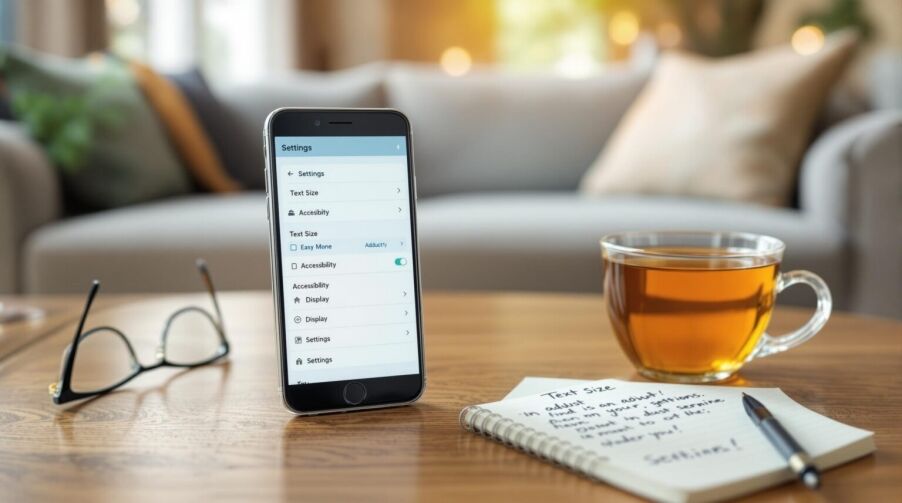
Quick answer: To set up a senior-friendly smartphone, make the screen easier to read, simplify the home screen, add trusted contacts, reduce noisy notifications, turn on emergency and accessibility features, and practice the few daily tasks the older adult will actually use. For many seniors, the best setup is not the newest phone. It is a familiar phone with large text, clear buttons, simple contacts, safe calling, and a caregiver who can help when settings change.
How to Set Up a Senior-Friendly Smartphone in 2026
A smartphone can help an older adult call family, receive appointment reminders, use rideshare or transportation help, join telehealth visits, check photos, and ask for help quickly. It can also become frustrating when icons are small, apps are scattered, notifications are constant, or the senior is afraid of pressing the wrong thing.
The goal is to make the phone match the person, not force the person to learn every phone feature at once. A good senior smartphone setup focuses on readability, confidence, safety, and repetition. Start with the settings below, then sit with the senior and practice the same routine several times.
Key Takeaways
- Make the phone readable first: increase text size, display size, contrast, brightness, and touch targets before teaching apps.
- Use simple mode when it helps: Samsung Easy Mode, iPhone Assistive Access, or a simplified Android launcher can reduce clutter for some seniors.
- Prioritize contacts and emergency setup: add family, caregivers, doctors, pharmacy, transportation contacts, and emergency information where appropriate.
- Reduce noise: turn off unnecessary notifications so important calls, texts, reminders, and appointments are easier to notice.
- Protect against scams: explain suspicious links, unknown callers, gift-card requests, urgent money requests, and fake technical-support messages.
- Practice real tasks: calling, answering, reading a text, sending a photo, charging the phone, and finding the phone should come before advanced apps.
1. Pick the Right Phone Before Changing Settings
If the senior already owns a working phone, start there. Familiarity matters. A slightly older phone that the person recognizes may be easier than a brand-new model with a different layout. If a new phone is needed, look for a bright screen, loud speaker, dependable battery, simple charging, a case that is easy to grip, and local support from family or a trusted store.
For iPhone users, Apple includes built-in accessibility features such as larger text, display adjustments, VoiceOver, AssistiveTouch, Medical ID, and Assistive Access. For Android users, settings vary by device, but most phones include font size, display size, magnification, TalkBack, Do Not Disturb, emergency contacts, and notification controls. Samsung Galaxy phones may also include Easy Mode, which can simplify the home screen and enlarge common controls.
The best choice depends on what the senior will actually do with the phone. A person who mainly calls family may need a simplified home screen and large contacts. A person who uses telehealth may need a good front camera, stable Wi-Fi, and a simple video-call app. A person who forgets passwords may need a safe caregiver-supported password plan.
2. Increase Text Size, Display Size, and Contrast
Readability is the first setup step. If the senior cannot comfortably read the screen, every other feature becomes harder.
- On iPhone: open Settings, then review Display & Brightness and Accessibility settings. Display & Text Size can help with larger text, bold text, button shapes, contrast, and other readability options.
- On Android: open Settings and look for Accessibility, Display size and text, Font size, Display size, Magnification, or similar options. Names vary by manufacturer, but the goal is the same: make words, buttons, and icons easier to see.
- On Samsung Galaxy: check Settings, Display, and Easy Mode if the phone offers it. Easy Mode can make the home screen simpler and easier to tap.
After changing settings, ask the senior to read a text message, open the phone app, and find the contact list. If the screen looks comfortable to you but not to them, keep adjusting. The senior’s comfort is the standard.
3. Simplify the Home Screen
A senior-friendly home screen should feel calm. Remove unused apps from the first screen, group similar apps, and keep only the most important shortcuts visible.
A practical first screen might include:
- Phone
- Messages
- Contacts
- Camera
- Photos
- Calendar or reminders
- Medication reminder app, if used
- Transportation or appointment app, if needed
- A trusted family contact shortcut
Avoid filling the home screen with games, shopping apps, news alerts, unfamiliar icons, or duplicate apps. If an app is not used weekly, it probably does not belong on the first screen.
4. Use Android Easy Mode, Senior Mode, or a Simple Launcher Carefully
Samsung Galaxy: turn on Easy Mode
- With the phone owner, open Settings and select Display.
- Choose Easy mode, then turn on its switch if this option is available.
- Return to the home screen and practice opening Phone, finding a trusted contact, and reading a message. Keep the setting only if it helps the person use their phone.
Samsung notes that available settings depend on the model, software version, and carrier. See Samsung’s official display and Easy Mode instructions.
Other Android phones: enlarge text and screen items
If Easy Mode is not available, open Settings and search for Font size and Display size. Adjust each slider while the phone owner checks the preview. Font size changes the text; display size changes the size of screen items. Some apps may use their own text settings. Follow Google’s text and display-size instructions for the options on that phone.
Some Samsung Galaxy phones include Easy Mode. This can create larger home-screen items and a simpler layout. Other Android phones may not have a built-in senior mode, but they may still allow larger text, larger display size, simpler widgets, contact shortcuts, and fewer home-screen pages. Some families use a third-party simple launcher, but that should be chosen carefully because it changes the phone experience and may affect how the senior finds apps.
Use simple mode when the senior benefits from fewer choices. Avoid it when the senior already knows the standard layout and would be confused by a sudden redesign.
5. Consider iPhone Assistive Access for a More Guided Experience
For some iPhone users, Assistive Access can create a more focused experience with selected apps and simpler interactions. It is designed to be set up with help from a trusted supporter, family member, or caregiver. It can be useful when the senior needs a very simplified set of apps and clearer choices.
Assistive Access is not right for everyone. Before turning it on, make sure the senior understands what will change and how to exit or get help. If the person already uses the standard iPhone layout comfortably, larger text and a simplified home screen may be enough.
6. Add Important Contacts and Make Them Easy to Reach
The contact list should be practical and organized. Add the people and services the senior may actually need:
- Primary family contact
- Backup family contact
- Caregiver or case manager, if applicable
- Primary doctor’s office
- Pharmacy
- Transportation contact
- Home health, hospice, or care team contact, if applicable
- All Seniors Foundation, if the senior or family is working with the organization
Use plain contact names such as “Daughter Maria,” “Doctor Office,” or “Pharmacy” instead of only first names. Add contact photos when helpful. Put the most important contact shortcut on the home screen if the senior uses it.
7. Set Up Emergency Information Without Creating False Confidence
Smartphone emergency features can help, but they do not replace 911, medical care, supervision, or an emergency response plan. For emergencies, call 911 or go to the nearest emergency room.
On iPhone, review Medical ID and Emergency SOS options. On Android, review emergency information, emergency contacts, and emergency SOS features available on that specific device. Settings vary, so test the location of the feature without placing an accidental emergency call.
Make sure emergency contacts know they are listed. If the senior has medical conditions, allergies, medications, or care instructions that should be visible in an emergency, confirm the information with the senior and appropriate healthcare professionals before entering it.
8. Reduce Notifications So Important Messages Stand Out
Too many alerts make a phone feel chaotic. Turn off notifications from apps the senior does not use. Keep notifications for calls, texts, calendar reminders, medication reminders, caregiver messages, and transportation or appointment alerts when those are important.
Do Not Disturb can help reduce nighttime interruptions, but it should be configured carefully so trusted family or emergency contacts can still get through if needed. After changing notification settings, test a phone call and a text from the main family contact.
9. Make Calling, Texting, and Photos Easy to Practice
Once the screen is readable and the home screen is simple, practice the core routine:
- Unlock the phone.
- Call a family member.
- Answer an incoming call.
- Read a text message.
- Send a short reply.
- Take a photo.
- Send the photo to a trusted contact.
- Charge the phone.
- Find the phone if it is misplaced.
Write the steps down in large print and keep them near the charger. Repetition builds confidence. A senior who can complete five daily tasks comfortably may get more benefit than a senior who has many apps but feels nervous using them.
10. Protect the Senior From Phone Scams and Confusing Messages
Scam prevention is part of smartphone setup. Older adults may receive fake bank messages, fake delivery texts, fake technical-support popups, urgent payment requests, romance scams, or impersonation calls. The setup should make it easier to pause before responding.
Use these simple rules:
- Do not tap links in unexpected texts.
- Do not share verification codes with callers.
- Do not buy gift cards for someone who calls or texts urgently.
- Do not give passwords, banking details, Medicare information, or Social Security numbers by text.
- When unsure, hang up and call a trusted family member or the official number on the back of a card or statement.
Turn on spam filtering or call screening if available, but do not rely on it completely. The senior should still know the basic rule: pause, verify, then respond.
11. Set Up Passwords, Updates, and Backups With a Trusted Plan
A phone that is easy to use also needs to be maintainable. Decide who will help with passwords, software updates, backups, and app changes. Keep this plan respectful. The senior should understand who can access what, and families should avoid taking over more privacy than necessary.
Good setup questions include:
- Who knows the phone passcode if the senior wants a backup person?
- Where are Apple ID, Google Account, or Samsung Account recovery details stored?
- Are photos backed up?
- Can a trusted person help if the phone is lost?
- Are automatic updates on, and does the senior know updates may change the screen slightly?
Use strong passwords and account recovery, but keep the workflow realistic. A perfect security setup that the senior cannot use may create new problems.
Adults interested in helping older adults with basic, consent-led technology tasks can review the Technology Help Volunteer interest guide.
12. Connect the Phone Setup to Real Senior Support Needs
A smartphone can support daily independence, but families often need more than a device. A senior may also need help with transportation, care coordination, in-home support questions, appointment planning, benefits navigation, medical equipment, or caregiver support.
All Seniors Foundation helps older adults, families, caregivers, and case managers in Los Angeles County think through practical next steps and connect with free senior support resources when appropriate. If the phone setup is part of a larger care or safety concern, the family can call and ask what support options may fit the situation.
Related Senior Support Guides
Helpful Official Setup References
Phone settings change by model and software version. When setting up a specific device, compare the steps above with the official support page for that phone:
Senior-Friendly Smartphone FAQ
What is the easiest smartphone setup for seniors?
The easiest setup is usually a simple home screen, large text, clear contacts, fewer notifications, emergency information, and practice with calling, texting, photos, and charging. The best setup depends on the senior’s vision, hearing, memory, comfort level, and daily routine.
Is Android Easy Mode good for seniors?
Android Easy Mode can be helpful when it is available, especially on Samsung Galaxy phones. It may make the home screen simpler and easier to tap. It is not necessary for every senior, and it should be tested before changing a phone the person already knows well.
How do I simplify an Android phone for an elderly parent?
Increase text and display size, remove unused apps from the first screen, add contact shortcuts, turn off noisy notifications, set up emergency contacts, and practice the most common tasks. If the phone has Easy Mode, try it only if it makes the phone easier for the parent.
How do I make an iPhone easier for an older adult?
Increase text size, review Display & Text Size settings, simplify the home screen, add favorite contacts, set up Medical ID if appropriate, reduce notifications, and consider Assistive Access if the person needs a more guided experience.
What apps should seniors keep on the home screen?
Keep only the apps the senior uses often, such as Phone, Messages, Contacts, Camera, Photos, Calendar, reminders, medication reminders, transportation, and a trusted family contact shortcut. Too many apps can make the phone harder to use.
How can families protect seniors from phone scams?
Teach the senior not to tap unexpected links, share verification codes, send gift cards, or give private information by text or phone. Add trusted contacts, use spam filtering when available, and encourage the senior to call a family member before responding to urgent or confusing messages.
Can All Seniors Foundation help with smartphone setup questions?
All Seniors Foundation can help seniors and families in Los Angeles County think through practical support needs connected to phone use, care coordination, transportation, appointments, medical equipment, and in-home support. The foundation does not replace emergency services or device manufacturer support.
Important note: This guide is informational and is not medical, legal, technical-support, or emergency advice. For emergencies, call 911 or go to the nearest emergency room. For device-specific problems, confirm settings with the phone manufacturer or a trusted support professional.





